 how-to
How to Automate Meeting Scheduling: A Step-by-Step Guide
Table of Contents
- Why Automate Meeting Scheduling
- What You'll Need Before You Start
- Step 1: Choose Your Meeting Automation Tool
- Step 2: Sync Your Calendars and Set Availability
- Step 3: Integrate with Your CRM for Meeting Automation
- Step 4: Set Up Automated Reminders and Confirmations
- Automated Scheduling Best Practices for Small Teams
- Common Mistakes to Avoid
- Frequently Asked Questions
Last Updated: September 2, 2026
Why Automate Meeting Scheduling
Back-and-forth emails, conflicting bookings, no-shows, and 30 minutes daily spent coordinating availability drain productivity without creating value. Automating meeting scheduling eliminates these friction points. Prospects see real-time availability and book directly. Conflicts disappear because the system knows your calendar state. Reminders reduce no-shows automatically. Your team reclaims hours weekly spent on scheduling logistics alone (hbr.org).
The real win is that automation scales without adding headcount. A small team can handle the same meeting volume that previously required a dedicated scheduling coordinator, critical for growth-stage companies where hiring support staff isn't feasible.
What You'll Need Before You Start
Your calendar system must be accessible. Whether you use Google Calendar, Outlook, or iCloud, the automation tool needs permission to read your availability and create events. Most tools require OAuth authentication, which is standard and secure.
Contact data should be centralized. If prospects and clients live in multiple systems, automation won't work smoothly. Ideally, you have a CRM where meeting history and participant information live.
Your team needs to agree on meeting policies. How long should meetings be? What's your buffer time between calls? Do you block certain hours as focus time? These policies determine how your automation behaves.
You need a video conferencing tool integrated. Most modern scheduling automation links directly to Zoom, Microsoft Teams, or Google Meet. The system generates a meeting link automatically and includes it in the calendar invite.
| Requirement | Why It Matters | Setup Time |
|---|---|---|
| Calendar system access | Automation reads availability and creates events | 10-15 minutes |
| Centralized contacts | Meeting history and follow-ups sync properly | 1-2 hours (if migrating) |
| Team meeting policies | System behaves consistently with your workflow | 30 minutes |
| Video conferencing integration | Meeting links generate automatically | 5-10 minutes |
Step 1: Choose Your Meeting Automation Tool
Selecting the right tool is the foundation of your automation strategy.
Comparing scheduling software options
Most meeting automation tools fall into three categories: standalone scheduling assistants, CRM-integrated solutions, and AI-powered autonomous agents.
Standalone schedulers like Calendly create a booking link you share with prospects, handle availability, send reminders, and integrate with your calendar. They're simple to set up but don't understand business context, they can't qualify leads or trigger follow-up workflows.
CRM-integrated solutions live inside platforms like HubSpot or Salesforce. When someone books a meeting, it automatically updates their deal stage, eliminating manual data entry.
AI-powered scheduling agents read email threads to understand context, autonomously negotiate meeting times across participants, and summarize meetings after they conclude. Task Flow AI provides production-ready AI agents that integrate with your existing tools without coding.
The choice depends on your workflow maturity. Start with a standalone tool if you need simplicity. Choose CRM integration if you have a CRM and want data to flow automatically. Choose AI agents if you need intelligence to qualify, route, and follow up automatically.
Key features that matter
Time zone detection should be automatic. Verify that your tool displays availability in the right zones and confirms times clearly.
Buffer time and time blocking are essential. The system should automatically block buffer time before and after each meeting and respect your focus blocks.
Recurring meeting support matters if you have regular calls. The system should recognize patterns and create recurring slots instead of booking each instance manually.
Automated reminders and confirmations reduce no-shows significantly (peer-reviewed research). The system should send reminders to prospects (typically 24 hours and 1 hour before) and confirmations once they book.
Integration with video conferencing should be seamless. When someone books, a Zoom or Teams link should generate automatically and appear in both the calendar invite and confirmation emails.
Real-time availability is non-negotiable. If your calendar isn't syncing in real-time, prospects will book conflicting slots.
Step 2: Sync Your Calendars and Set Availability
Once you've selected your tool, connect your calendar system and configure how availability appears to prospects.
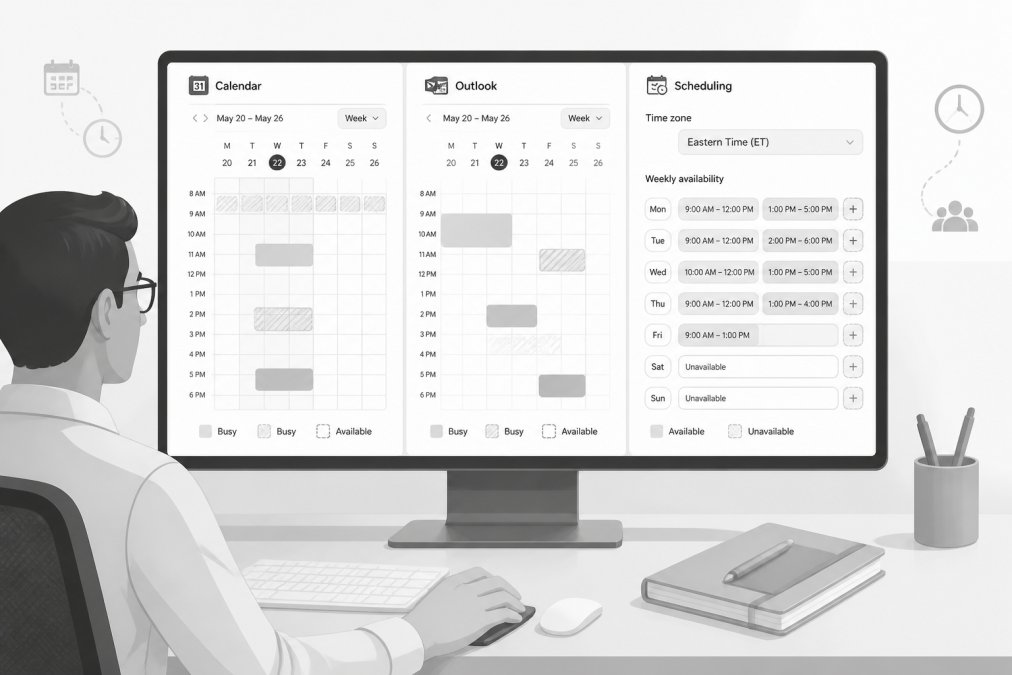
Connecting Google Calendar, Outlook, and iCloud
For Google Calendar: Most tools ask you to authorize access via your Google account. The tool then pulls your calendar data and monitors for conflicts in real-time.
For Outlook/Microsoft 365: The process is similar but happens through Microsoft's authentication system. Some tools integrate through the Microsoft Graph API, which provides real-time sync.
For iCloud Calendar: Fewer tools support iCloud natively because Apple's calendar system is less accessible to third-party integrations. Verify that your chosen tool supports it before committing.
Once connected, your calendar becomes the source of truth. The scheduling tool reads it constantly and only shows prospects time slots when you're genuinely free.
Configuring time zones and buffer time
Set your primary time zone first. This is where you're physically located or where most meetings happen. When prospects from other zones book, the tool converts their selection to your time zone.
Define buffer time between meetings. Most people need at least 15 minutes between calls to wrap up notes and transition mentally.
Block focus time explicitly. If you have hours when you don't want meetings, add these as recurring blocks. The system will treat these as unavailable.
Handle time zone differences for distributed teams. If your team spans multiple zones, the tool needs to know everyone's availability. Some systems show a team calendar view where prospects can see when everyone is free simultaneously.
Test the configuration before going live. Book a test meeting from a different time zone. Verify that the confirmation shows the correct local time for both parties.
Step 3: Integrate with Your CRM for Meeting Automation
The real power of automation emerges when scheduling connects to your CRM. Meetings become part of your business workflow instead of isolated calendar events.
Syncing contact data and meeting history
When your scheduling tool connects to your CRM, new prospects who book meetings create contact records automatically. Existing contacts get their meeting history updated. The system knows whether someone is a new lead, existing customer, or past prospect.
Verify that contact deduplication is working. Configure deduplication settings before going live.
Set up meeting type tagging. Tag meetings by type (discovery calls, demos, support sessions, closing calls) so your CRM can segment them.
Automating follow-ups and meeting recaps
Automated follow-up emails should send within a few hours of the meeting ending. These remind the prospect of what was discussed and include next steps.
Meeting recaps can be generated automatically if your tool integrates with video conferencing. Some AI-powered systems transcribe the call, extract key points, and create a summary automatically.
Lead scoring adjustments can happen automatically. If a prospect attends a demo call, that's a signal they're more engaged. Your CRM can increase their score automatically.
Task creation for your team can be automated. After a discovery call, create a task to prepare a custom proposal.
Step 4: Set Up Automated Reminders and Confirmations
Reminders and confirmations reduce no-shows and improve meeting quality.
Confirmation emails should go out immediately after booking. Include the meeting title, date, time (in the prospect's time zone), duration, and video conference link.
Reminder emails typically go out at two intervals: 24 hours before and 1 hour before the meeting. The 24-hour reminder is informational. The 1-hour reminder prevents no-shows.
SMS reminders are optional but effective for reducing no-shows. Only send SMS if the prospect has explicitly opted in.
Automatic calendar invites should be included in all confirmations.
For your team: Configure reminders that go to meeting owners 15 minutes before calls.
Automated Scheduling Best Practices for Small Teams
Automation is powerful, but it requires discipline.
Preventing double-booking and scheduling conflicts
Use a shared team calendar for all meetings that matter. If your team has individual calendars, the scheduling tool can only see one person's availability at a time.
Test your calendar sync regularly. Once per week, manually add an event to your calendar and verify that the scheduling tool recognizes it within 5 minutes.
Set explicit meeting duration defaults. If your tool defaults to 30 minutes but you always do 45-minute calls, prospects will book 30-minute slots.
Use time blocking for focus work. Make recurring blocks that the system sees and respects.
Using AI-powered scheduling assistants effectively
AI scheduling assistants can read email threads and extract meeting preferences without the prospect typing anything. They can autonomously negotiate times across multiple participants.
Train them on your preferences. AI assistants learn from past meetings, what times you prefer, how long you typically talk, whether you prefer morning or afternoon calls.
Start with simple tasks. Don't have the AI handle complex multi-party negotiations on day one. Begin with straightforward prospect scheduling.
Review the AI's decisions periodically. Look at meetings it scheduled and see if they align with your preferences.
Privacy and data security compliance
Meeting automation involves handling sensitive data.
Ensure the tool complies with GDPR if you work with European prospects. (europa.eu) When prospects book meetings, they should see a privacy notice.
For data stored in the U.S., verify CCPA compliance if you have California residents. Your tool should support data deletion requests and provide transparency about data usage.
Encryption should be standard. All data transmitted between your calendar, CRM, and scheduling tool should be encrypted in transit. Data at rest should also be encrypted.
Limit access to meeting data. Configure role-based access so people only see meetings relevant to them.
Handle recordings carefully. If your scheduling tool automatically records meetings, you need consent from all participants.
Audit access logs. Periodically review who accessed meeting data and when.
Common Mistakes to Avoid
Automating before you have a process. Define your meeting policies first, how long meetings are, what time zones matter, what follow-up looks like. Then automate that process.
Ignoring time zone complexity. If you operate across time zones and don't configure them properly, you'll create meetings at impossible times.
Over-automating follow-ups. Automated emails are valuable, but too many becomes spam.
Not syncing your CRM properly. If your scheduling tool creates meetings but they don't appear in your CRM, you lose context.
Forgetting to test before launch. Book a test meeting from a different email address. Verify that the confirmation is clear, the time zone is correct, the video link is included, and the meeting appears in your calendar.
Setting availability too wide. If your scheduling link shows availability 7 AM to 9 PM, prospects will book at 7 AM.
Not updating availability when plans change. If you block time for a project and then it gets cancelled, remember to unblock it.
Automating meeting scheduling transforms how small teams operate. The time reclaimed isn't just about efficiency, it's about enabling growth without hiring. A founder who used to spend 5 hours weekly on scheduling now spends 30 minutes. That's 4.5 hours per week to focus on revenue-generating work.
The implementation is straightforward if you follow the steps: choose a tool that matches your workflow, sync your calendars properly, integrate with your CRM, and set up reminders.
Task Flow AI provides production-ready AI agents designed for this exact use case. Our agents integrate seamlessly with your website, CRM, and business tools without requiring any coding. You can automate meeting scheduling, lead qualification, and follow-up workflows using a simple embed code or API key. Get started with Task Flow AI and let autonomous agents handle your scheduling complexity while your team focuses on closing deals.
Frequently Asked Questions
Q: What is the most efficient way to automate meeting scheduling?
A: The most efficient approach combines three elements: calendar synchronization across all platforms (Google Calendar, Outlook, iCloud), real-time availability detection to eliminate back-and-forth, and automated reminders with meeting confirmation. AI-powered scheduling assistants can parse email threads and propose times automatically, reducing scheduling friction for small teams. Start with calendar sync, then add CRM integration to capture meeting data automatically.
Q: How do I integrate meeting scheduling with my existing CRM?
A: Most modern scheduling tools connect to your CRM via API or native integrations. First, authenticate your CRM within your scheduling platform's settings. Then configure field mapping so meeting details (attendee names, times, outcomes) sync automatically to contact records. This creates a complete meeting lifecycle record without manual data entry. For older CRM systems, middleware tools can bridge the connection if native integration isn't available.
Q: What are the benefits of using automated scheduling software?
A: Automated scheduling eliminates back-and-forth emails, reduces no-shows through automated reminders, and captures meeting data for CRM records automatically. You also gain better calendar conflict resolution, real-time availability visibility across team members, and post-meeting automation workflows that trigger follow-ups and meeting recaps without manual intervention.
Q: How can AI agents improve the meeting scheduling process?
A: AI-powered scheduling assistants analyze email threads to understand context, propose optimal meeting times based on participant availability and time zone detection, and handle cancellations or rescheduling autonomously. They can also parse meeting requests from prospects, extract key details, and create calendar entries without human intervention. For growing teams, autonomous agents reduce scheduling workload, allowing staff to focus on meeting outcomes rather than logistics.